GOOGLE UPDATE CHECKER · SEARCH CONSOLE
Analyze the impact of Google Updates on your website
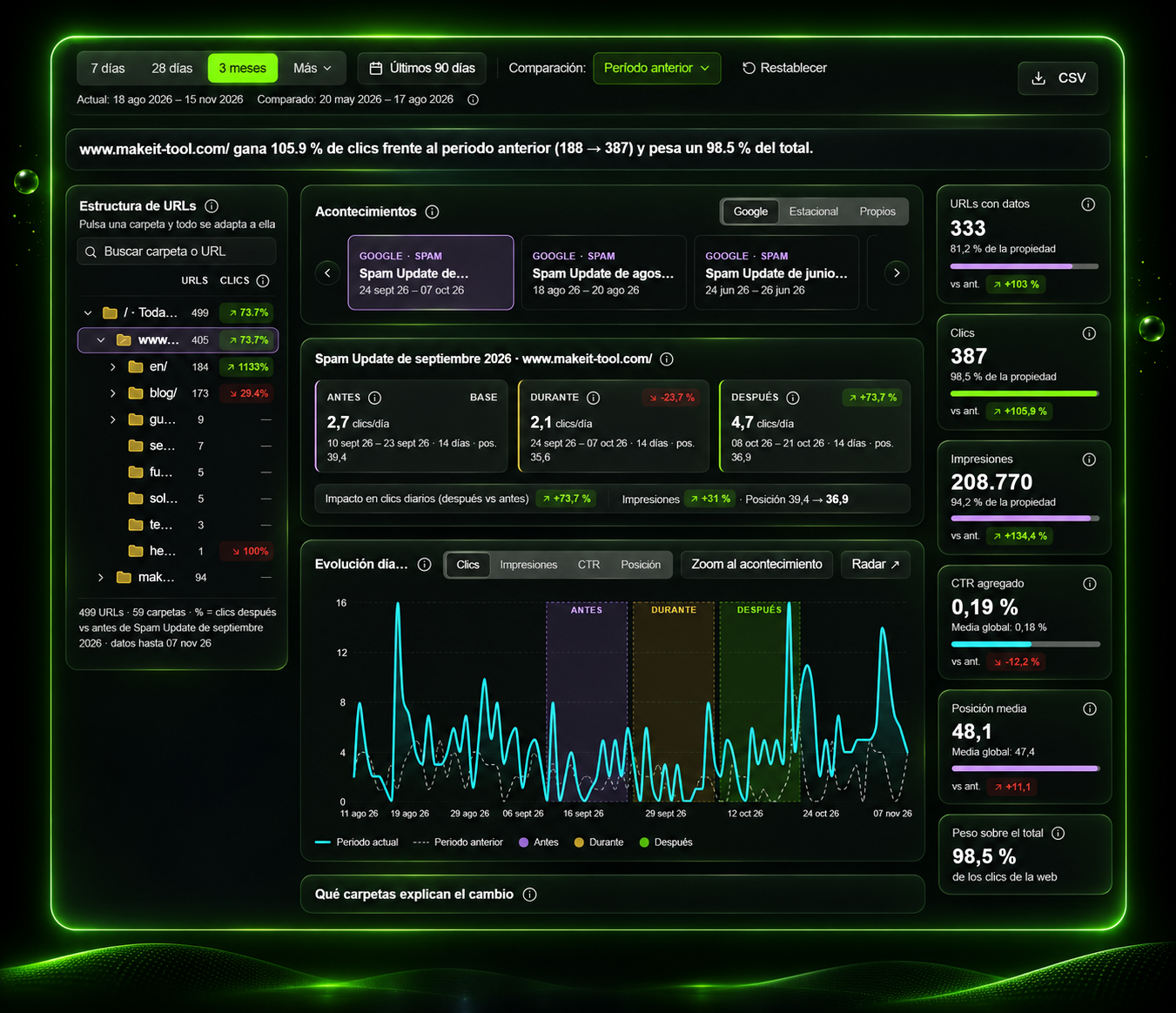
Has your traffic dropped after a Core Update? Are some sections of your website growing while others lose clicks?
With Make it Tool, you can compare performance before, during and after each Google update, discover which folders and URLs explain the change, and analyze it using your own Google Search Console data.
Google Search Console data · Analysis by folders and URLs · Period comparison
Has your traffic dropped because of a Google update, or is something else happening?
Search Console shows that you have lost clicks, but that figure alone does not explain what happened.
One category may have lost visibility while the rest of the website grows. Clicks may fall without significant position changes. Or the variation may coincide with the rollout of a Core Update.
When did the drop start?
Compare your project's performance with Google Update dates.
Where are clicks being lost?
Move from the overall figure to the folders and URLs that account for the change.
What has actually changed?
Compare clicks, impressions, CTR and position to investigate with context.
Do not stop at the percentage drop. Discover which parts of your website explain it.
Check the impact of a Core Update before, during and after its rollout
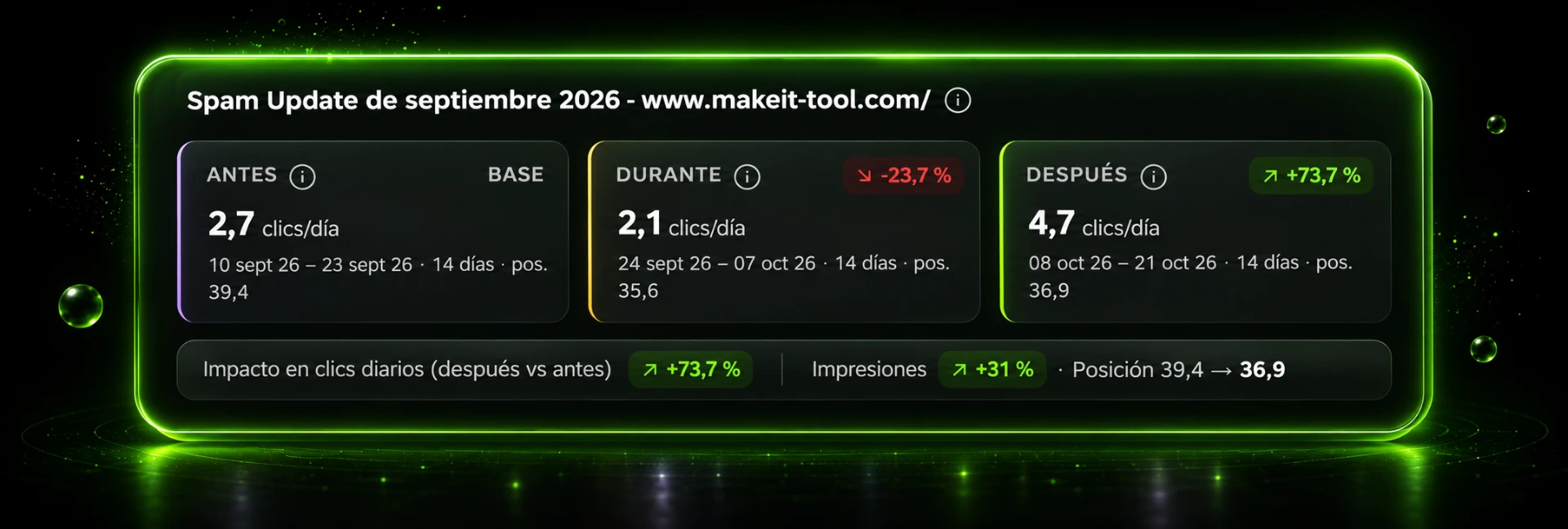
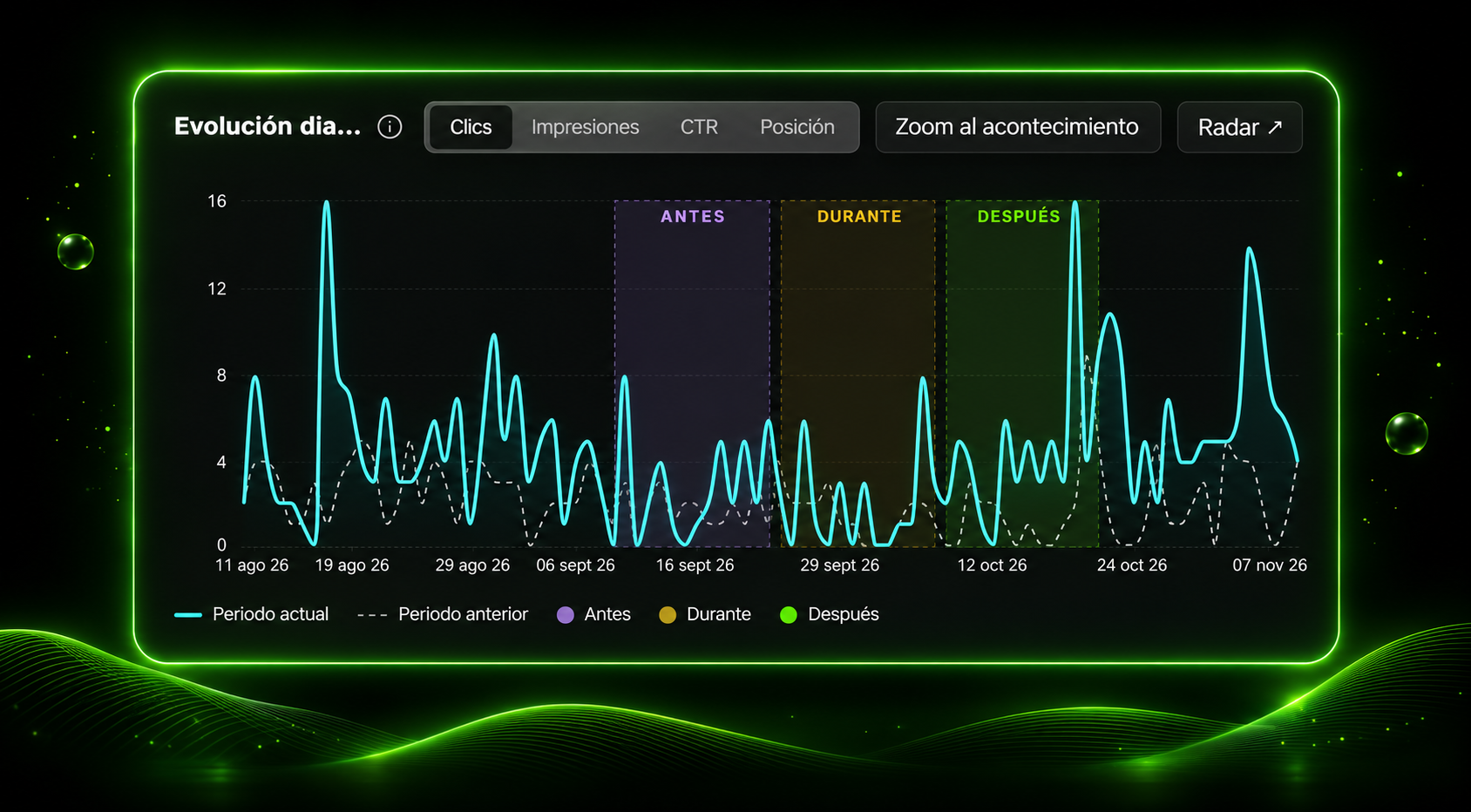
A Google algorithm update can coincide with very different variations in each project. Knowing the update date is not enough: you need to see how your website performed.
Make it Tool connects recorded events with your Search Console property's performance, separating the data into three stages:
Switch between clicks, impressions, CTR and position, and examine the daily chart to put changes into context. Matching dates are a clue to investigate, not automatic proof of causality.
- Before. Establish a reference period to understand previous performance.
- During. Observe clicks and other metrics during the rollout.
- After. Check the recorded performance following the update and compare it with the previous period.
Discover which folders and URLs gain or lose organic traffic
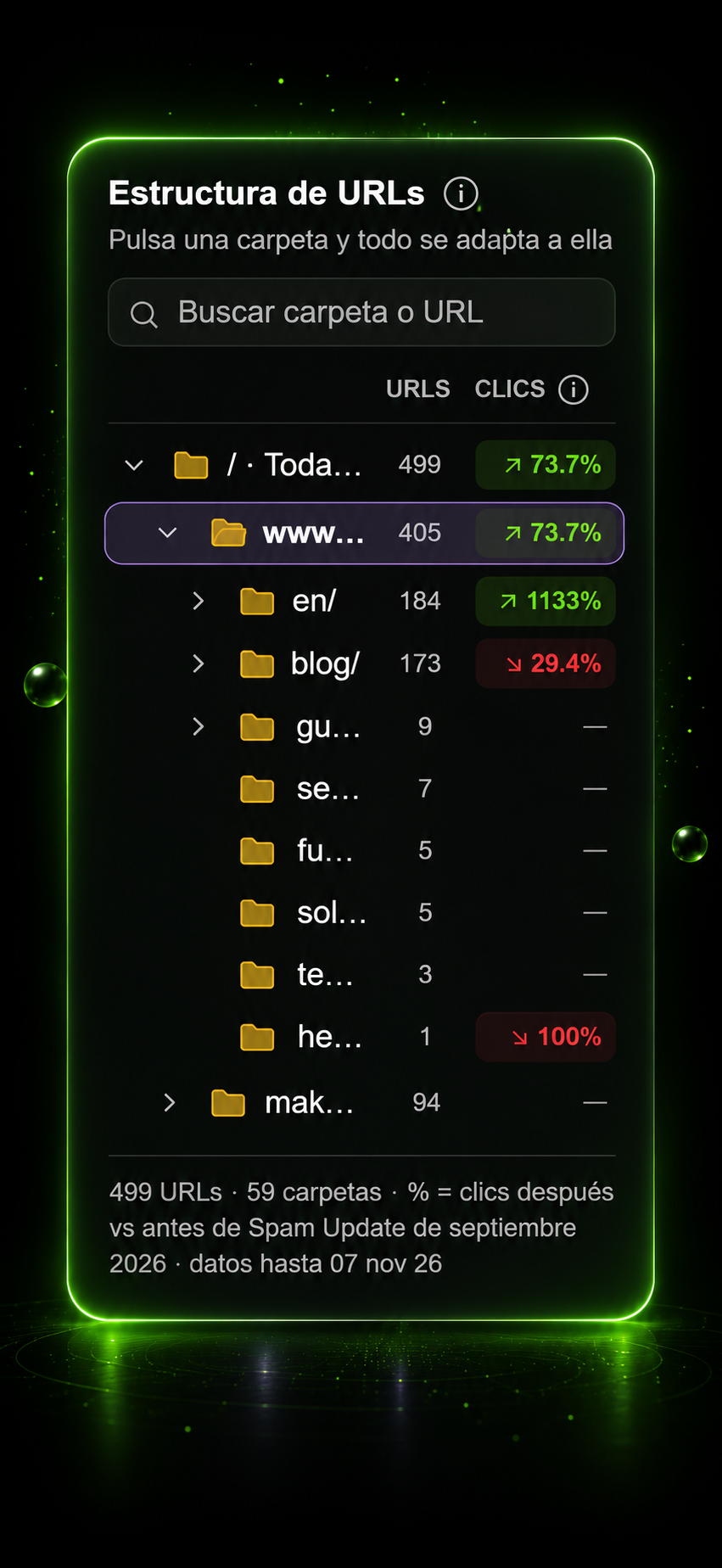
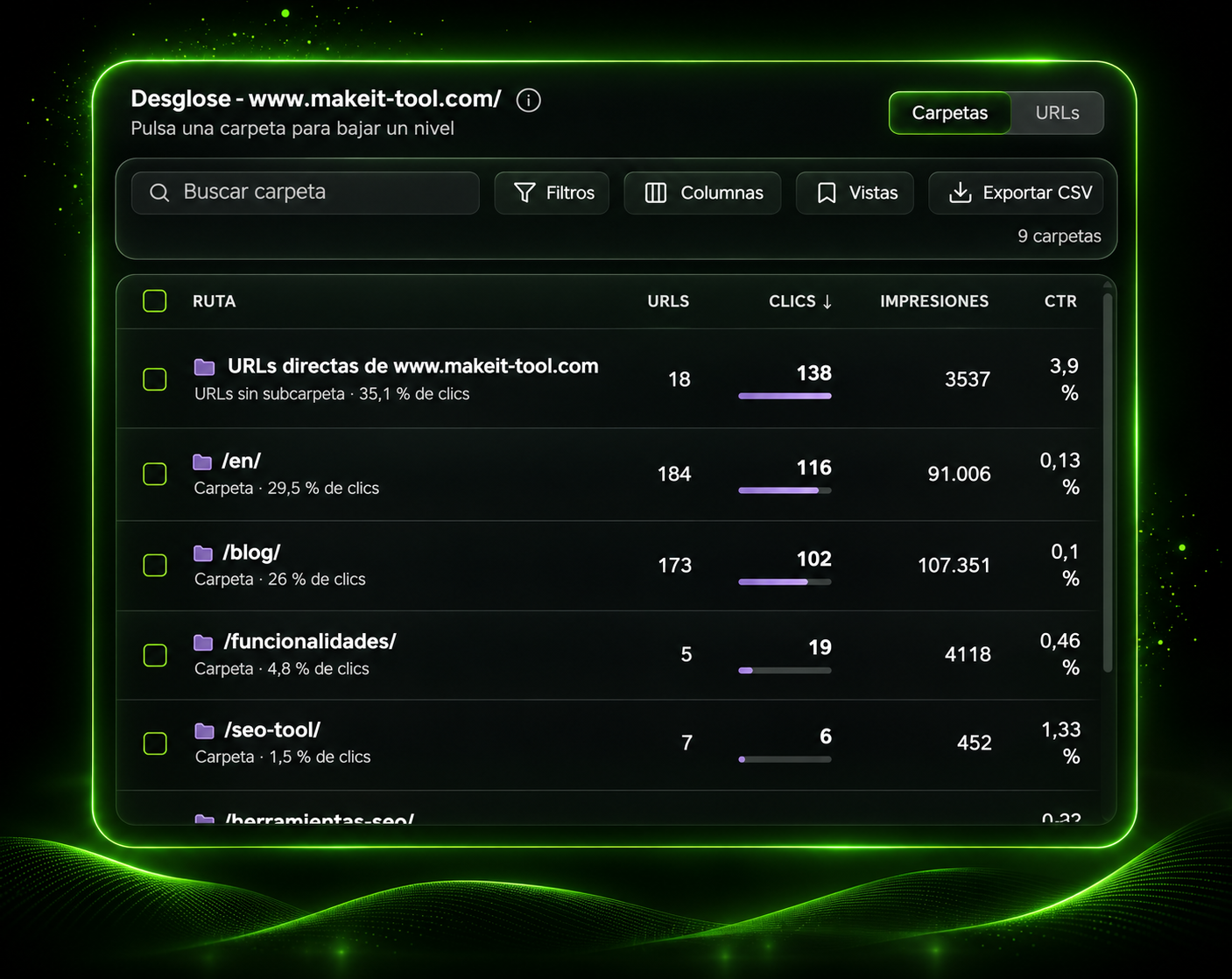
Your domain may be losing clicks without the entire website declining. What matters is finding which sections explain that change.
Make it Tool organizes URLs with Google Search Console data into a folder and subfolder structure so you can analyze performance by section without manually building dozens of filters.
- Identify the directories that contribute most to organic traffic.
- Compare which folders improve and which lose clicks.
- Review each section's share of the project total.
- Drill down to URLs to investigate individual pages.
- View and export the available metrics to continue working with your data.
A drop across your domain does not mean all your pages are declining.
Find the sections that contribute most to a traffic drop
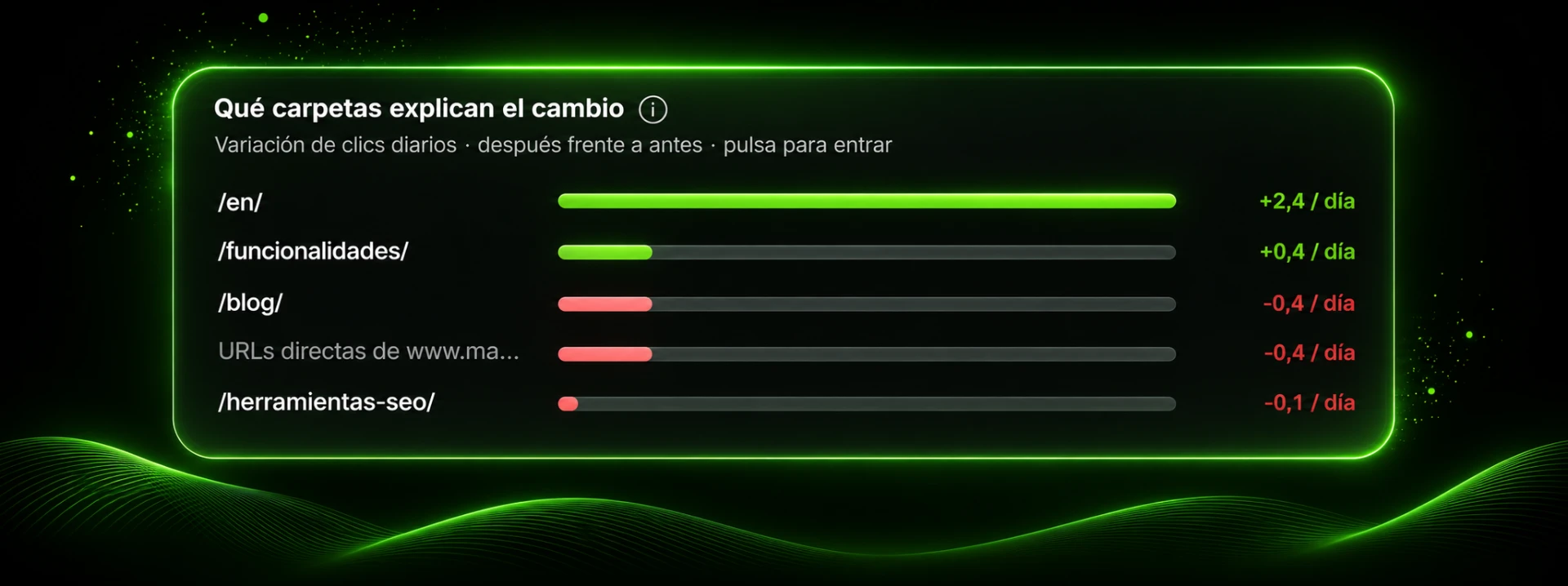
Not all losses have the same impact.
A section may drop significantly in percentage terms yet represent a very small share of your clicks. Another may show a seemingly modest variation while accounting for much of the overall decline.
The “Which folders explain the change” panel shows the main variations by folder and distinguishes sections contributing clicks from those losing them.
This helps you prioritize where to look first and avoid decisions based only on the domain's aggregate figure.
Prioritize actual impact, not just percentages.
Explore Google Update history and compare how your website responded
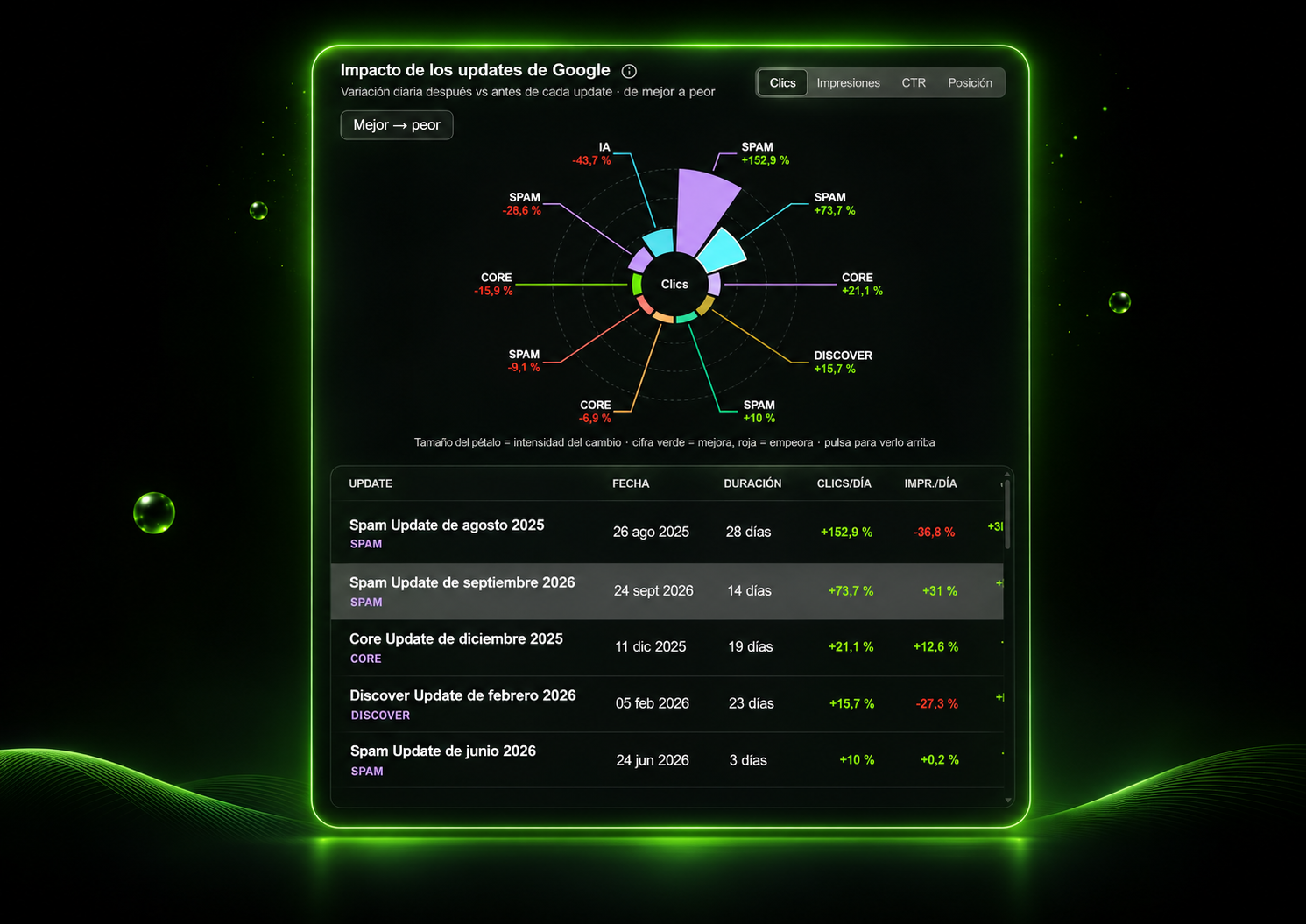
Was it a one-off drop, or have you seen significant variations across several updates?
Make it Tool's historical radar lets you compare recorded events and check how your project's metrics changed during their respective periods.
View variations on a radial chart and consult a table with update type, dates, duration and performance changes. Switch the metric from clicks to impressions, CTR or position.
This helps identify periods that deserve further analysis and understand the website's historical performance.
From “we have lost traffic” to knowing where to investigate
A familiar situation: Search Console shows a drop in clicks after a Google update. In the SEO meeting, the question is always the same: “Which pages have been affected?”
Result: move from an aggregate figure to a more focused SEO investigation, without automatically attributing every rise or fall to the algorithm.
- 1. Select the Google update you want to review.
- 2. Compare performance before, during and after its rollout.
- 3. Check whether the change affects clicks, impressions, CTR or positions.
- 4. Identify which folders explain the traffic variation.
- 5. Review the URLs in those sections to decide what to investigate first.
Analyze Google Updates using your own Search Console data
1. Connect your project.
Link the Google Search Console property you want to study.
2. Select an update.
Choose the event and the period you want to compare.
3. Investigate the impact by section.
Analyze metrics, review folders with changes and drill down into URLs.
The information available depends on Search Console data and the selected period.
Explore the Google Search Console extensionFrequently asked questions about Google Updates and traffic drops
How can I tell whether a Core Update affected my website?
Compare the official update dates with your clicks, impressions, CTR and positions in Google Search Console. In Make it Tool, you can review periods before, during and after an update and locate folders and URLs with the largest variations. The timing helps you investigate, but does not by itself prove the update caused the change.
Can I analyze an update while Google is still rolling it out?
You can observe the available data during the rollout, but treat it as provisional. To evaluate a Core Update, Google recommends waiting at least one week after it finishes before drawing conclusions from subsequent period comparisons.
Why do my clicks drop if average position barely changes?
Clicks also depend on impressions and CTR, as well as the mix of searches and the elements appearing in Google results. Reviewing these metrics together helps you understand a drop and avoid conclusions based only on average position.
Do I need to connect Google Search Console?
Yes. Personalized analysis relies on the performance data available in the Google Search Console property you connect to Make it Tool.
Does this feature replace a technical website architecture audit?
No. The Website Architecture view organizes URLs with Search Console data into folders to study their organic performance. It does not replace a technical crawler for internal links, canonicals, click depth or HTTP status codes.
Can I compare the impact of several Google updates?
Yes. Event history and the impact radar let you review different updates and compare the performance variations recorded during their respective periods.
Stop wondering what happened to your traffic. Start investigating with data.
Google updates do not affect all websites or all their sections in the same way. Analyze your own data, identify the folders and URLs that explain variations, and focus your next steps where they really matter.
Make it Tool · Google Search Console · SEO analysis by folders and URLs